Welcome to
Pics to Description
by gelo.ai
Turn product images and existing product information into ready-to-use product descriptions, SEO titles and meta descriptions — in seconds.
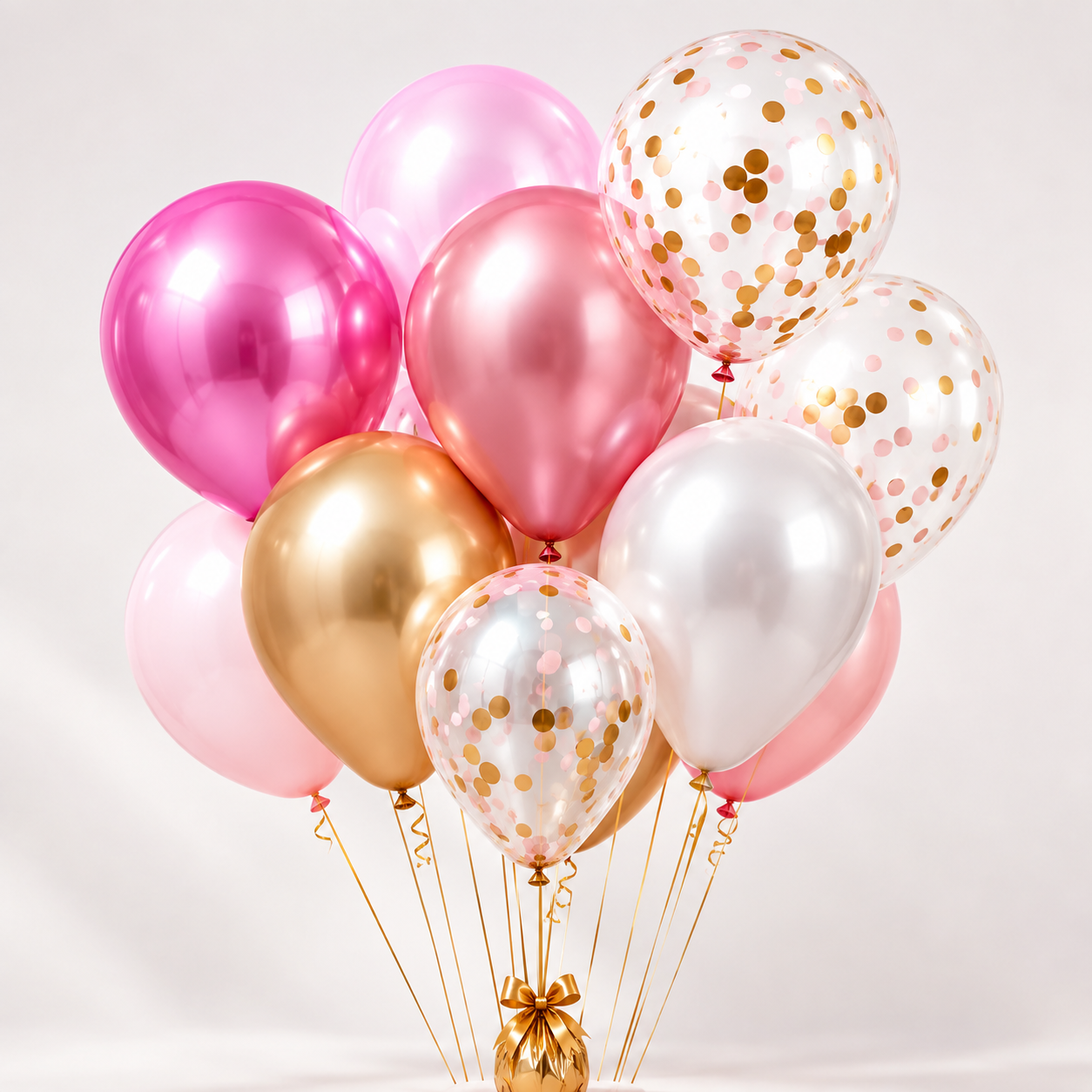
Generated with Pics to Description
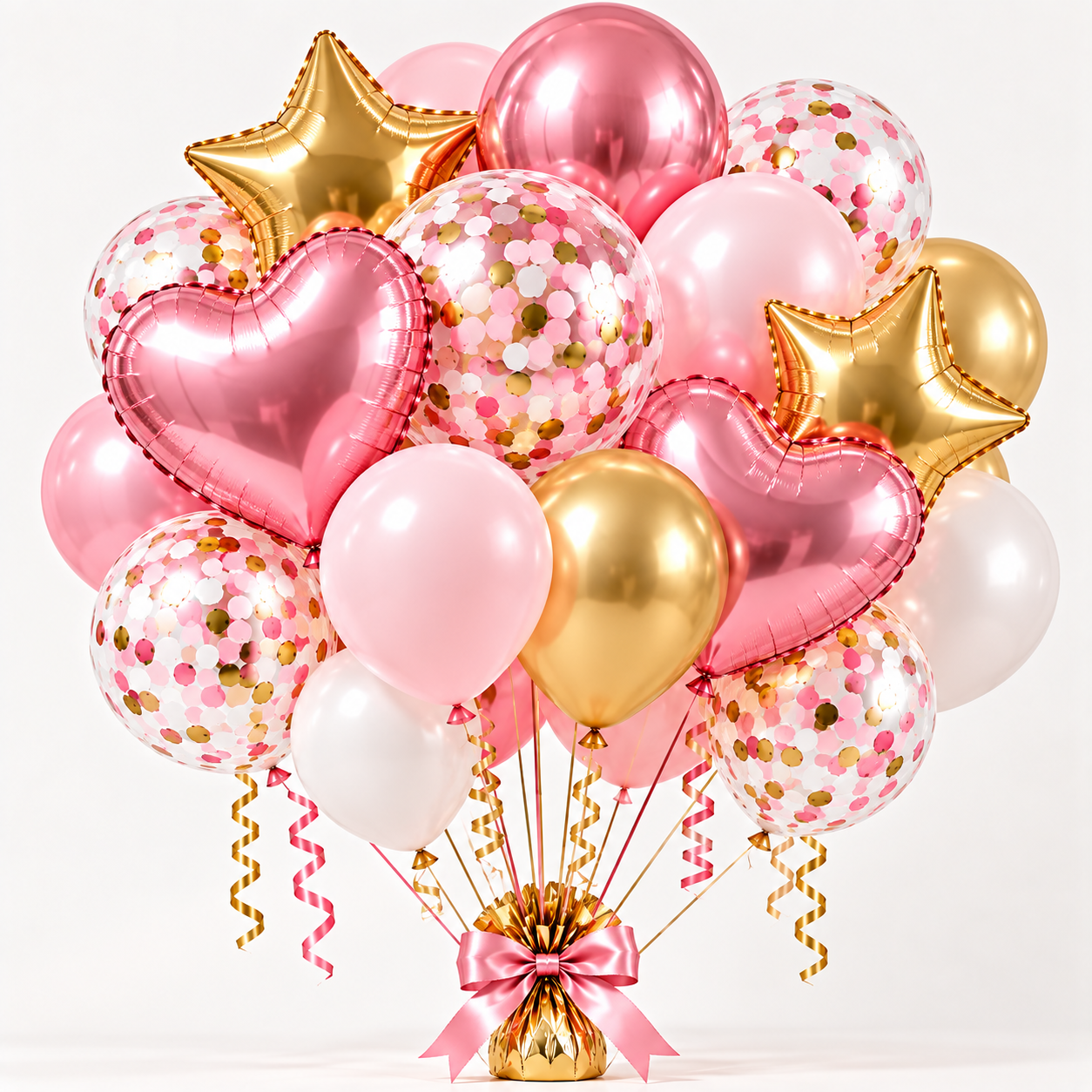
Pink and Gold Balloon Bouquet
Make every celebration extra special with this festive balloon bouquet. Featuring soft pink, gold and white balloons, it’s perfect for birthdays, celebrations and special occasions.
Pink and Gold Balloon Bouquet | Birthday Party Decoration
Shop a festive pink and gold balloon bouquet for birthdays, celebrations and special occasions.
Set Up Your Instructions
Create your own instructions to tell Pics to Description how you want your product content to be written.
- ✓ Start with the instructions available in the app or create your own.
- ✓ Add your preferred tone, style and important product details directly to an instruction.
- ✓ Tell the AI what information to include, prioritize or avoid.
- ✓ Create multiple instructions for different products and content needs.
- ✓ Reuse and combine your saved instructions when generating content.
Manage instructions
Here you can create and edit your own custom instructions which you can easily use when generating descriptions.
Your instruction can include:
- Tone and brand voice
- Product details to prioritize
- Description structure
- SEO guidance and keywords
- Formatting and bullet points
- Target audience or use cases
- Information to include or avoid
Create as many instructions as you need. Reuse and combine them when generating content for different products.
Test It on One Product
Select a product and choose one or more of your saved instructions. Pics to Description uses your product images and existing product information to generate the content.
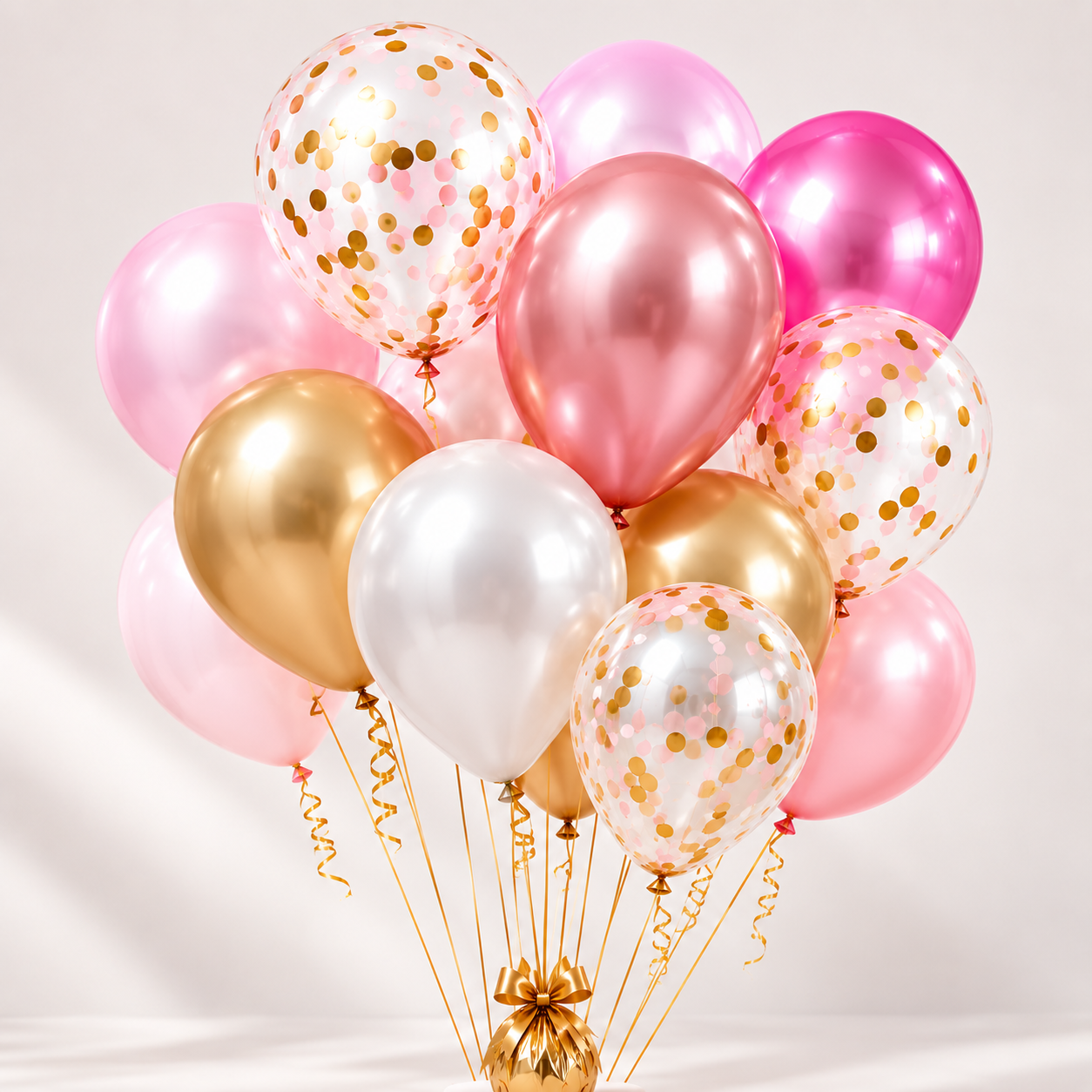

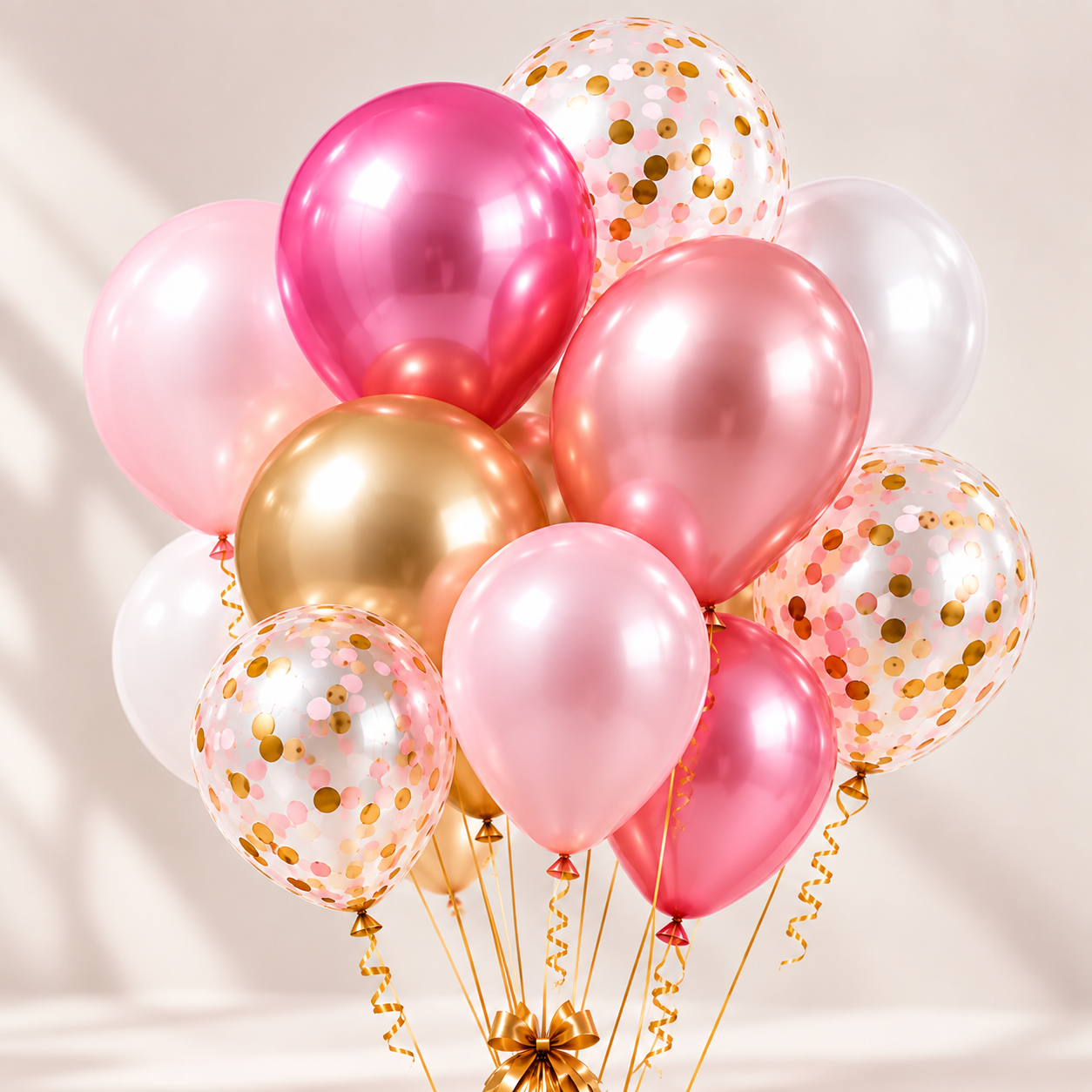
Generate with your instruction(s)
Review and Refine
Check the generated content. If needed, edit an existing instruction, add another instruction or create a new one, then generate again until the content matches your store’s style.
Selected Instructions
Adjust an existing instruction, add another one, or create a new instruction and generate the content again.
Scale with Bulk Generation
Once you’re happy with the results, use your tested instruction(s) to process multiple products or an entire collection.
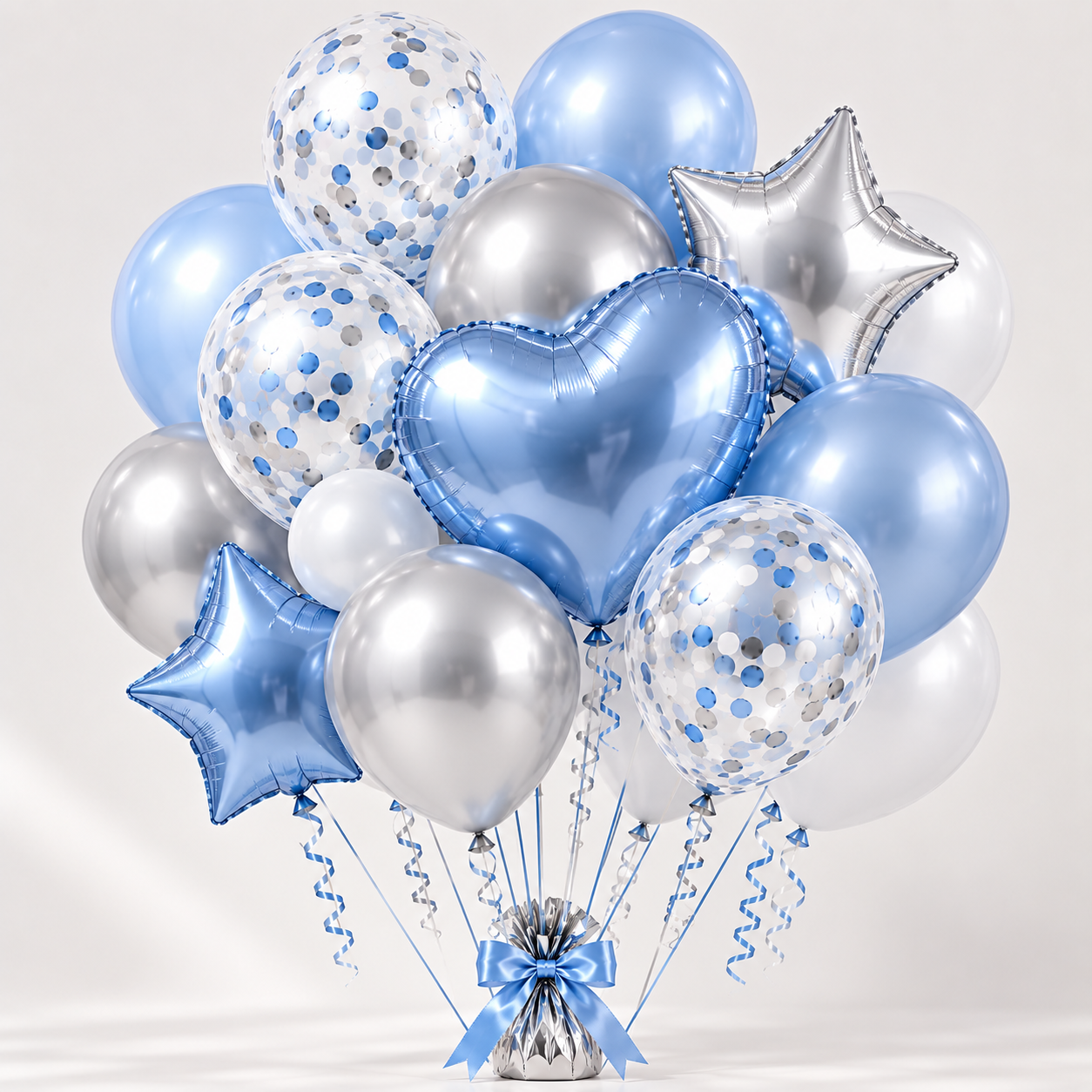
Generate descriptions for multiple products in just a few clicks.
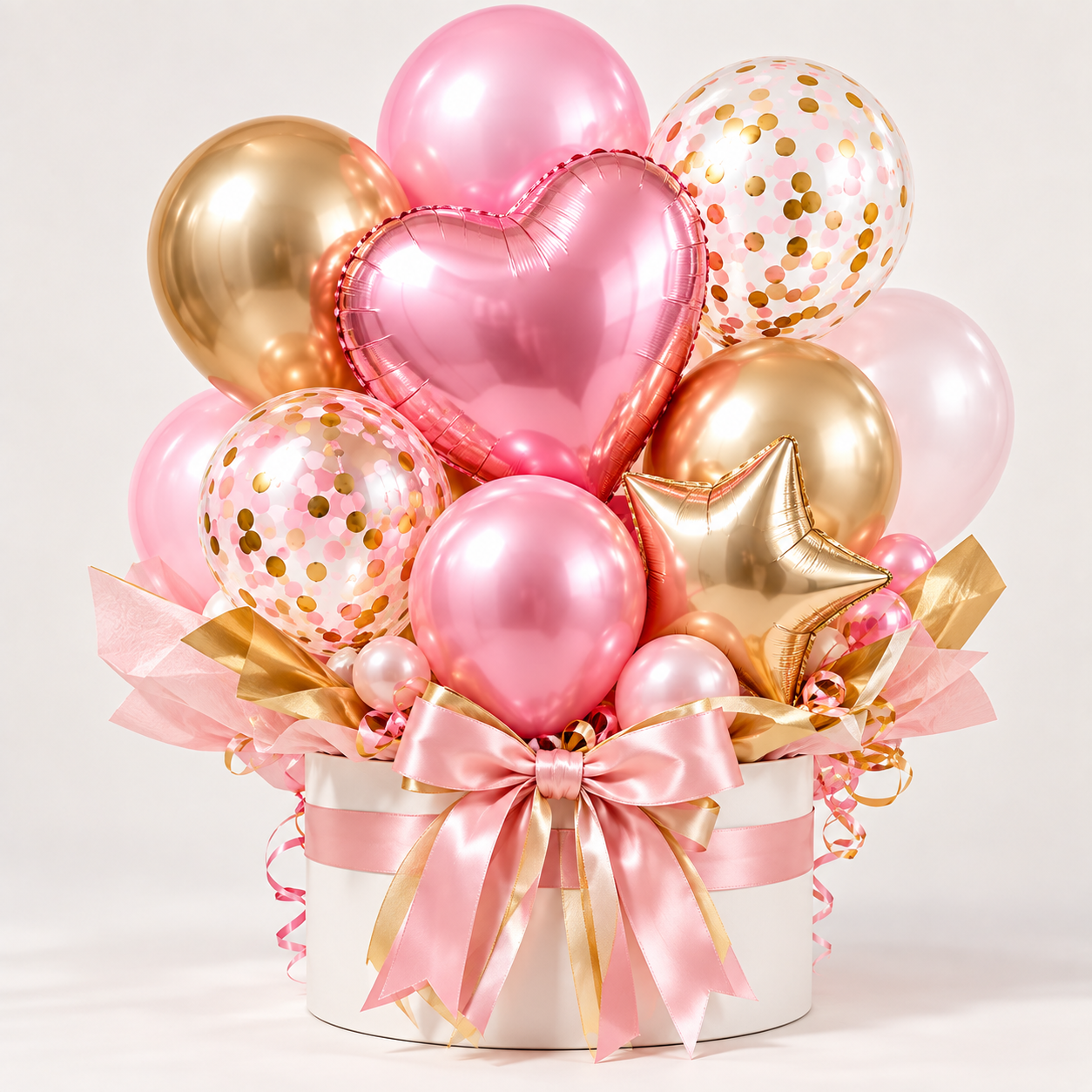

more
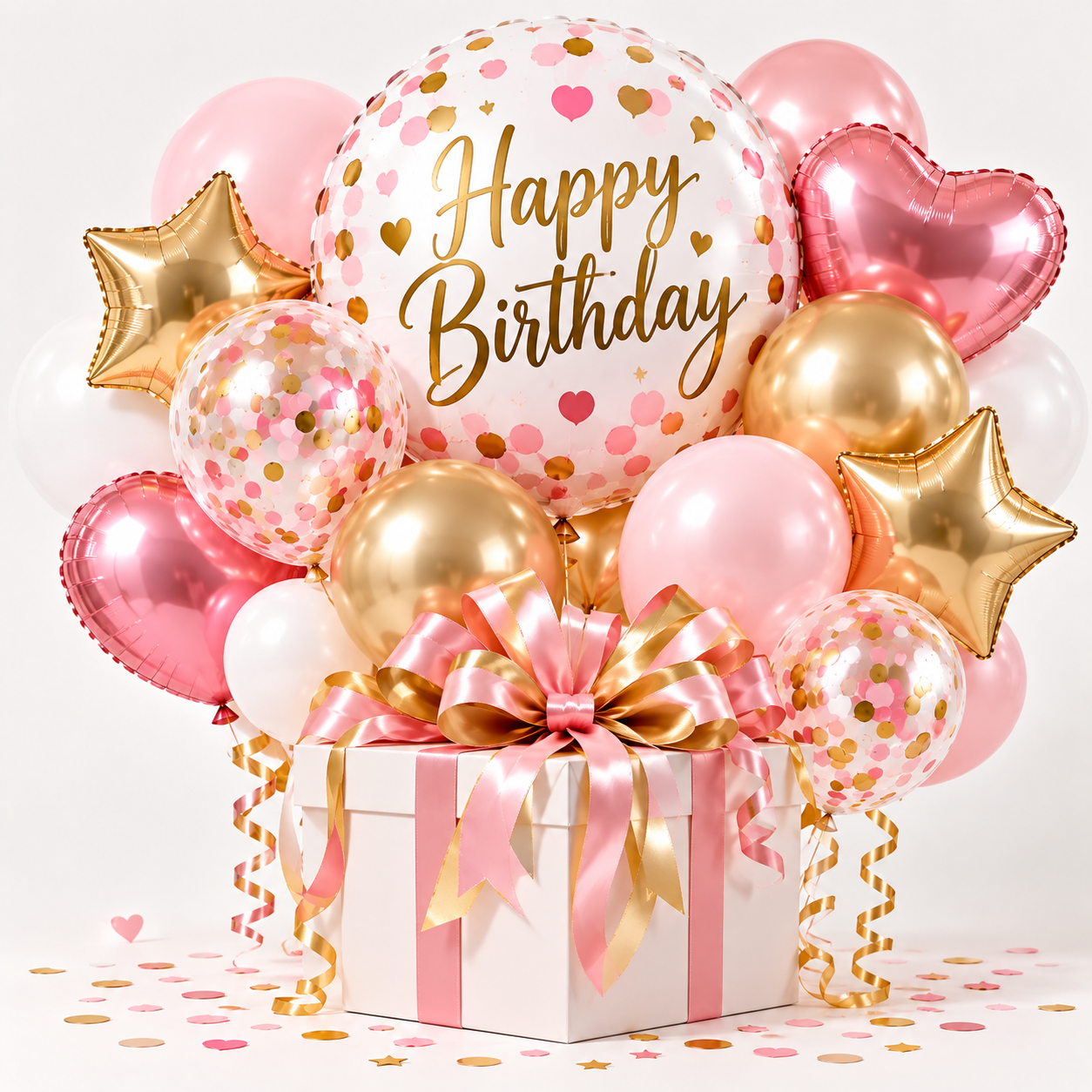
Generate descriptions for all products in a collection in just a few clicks.


more
Start with the Free Plan
Try Pics to Description with your own products before processing a larger catalog.
- 10 free generations per month
- Product descriptions
- SEO titles
- Meta descriptions
- Content generated from images and existing product information
Need Help?
Have a question, suggestion or feature request? The gelo.ai team is here to help.
- Questions about using Pics to Description
- Suggestions and feedback
- Feature requests
- Check the FAQs below for common questions
Ready to Go Further?
Once you are comfortable with the basic workflow, improve how you structure and scale your product content.
- Create instructions for different product types
- Build a consistent brand voice
- Add SEO guidance to your instructions
- Test instruction combinations
- Use bulk generation after testing
Want Advanced Tips?
Subscribe to receive:
• SEO best practices
• Shopify growth tips
• Automation workflows
Frequently Asked Questions
Which images are used during bulk operations?
Pics to Description uses the images currently attached to each product in your Shopify catalog, in the order they appear on the product page.
Can I use the current product description as a source?
Yes. You can choose to have the AI reference your existing description alongside the product images for more accurate results.
Can I customize the tone and style?
Absolutely — use Custom Instructions to set tone, voice, and focus for any product category.
Can this help with SEO?
Yes. Every generation includes an SEO title, meta description, and keyword-aware product copy.
Do I need custom instructions?
No. The AI works without them, but adding custom instructions helps generate more accurate, on-brand, and SEO-focused content.
Can I save multiple instruction templates?
Yes. Create as many as you need for different products, brands, or writing styles.
Can I combine multiple instructions?
Yes. Mix and match saved instructions to guide the AI and produce more tailored results.
Do I need technical or SEO knowledge?
No. Start with the ready-made templates and customize them as you become more comfortable.
Can I edit the generated content?
Yes. You can review and edit the content before inserting it into your Shopify product page.
Other apps we recommend


💚 Let’s build better product pages together. Thank you for being part of the Gelo.ai community!